
Run VpnHood! SERVER on a dynamic IP address
Many home connections get a new public IP address every few days. You do not need a static one: VpnHood! MANAGER follows the new address by itself, and your users' apps find it through a dynamic DNS name or farm token URLs.
What happens when the address changes
A server with Automatic Configuration on, as every new server is, follows the address by itself. Its next report to MANAGER comes from the new address, so MANAGER has the server look its addresses up again, and updates the access points and the keys within a few minutes. There is nothing to reinstall or restart.
With Automatic Configuration off, the addresses stay as you set them, so you change them yourself, as Change an address shows.
Behind a home router
Apps reach your server through your router, so the router has to pass their connections on. You set this up once: MANAGER keeps each access point's ports when the address changes.
- Give the machine a fixed address on your home network. Routers call this a DHCP reservation or a static lease.
- Open Servers, select the server and find its Access Points, which list its ports.
- In the router, forward them to the machine: the TCP Port (1) as TCP, and the UDP Port (2) and QUIC Port (3) as UDP. A port of
-1is off, and needs no forwarding.
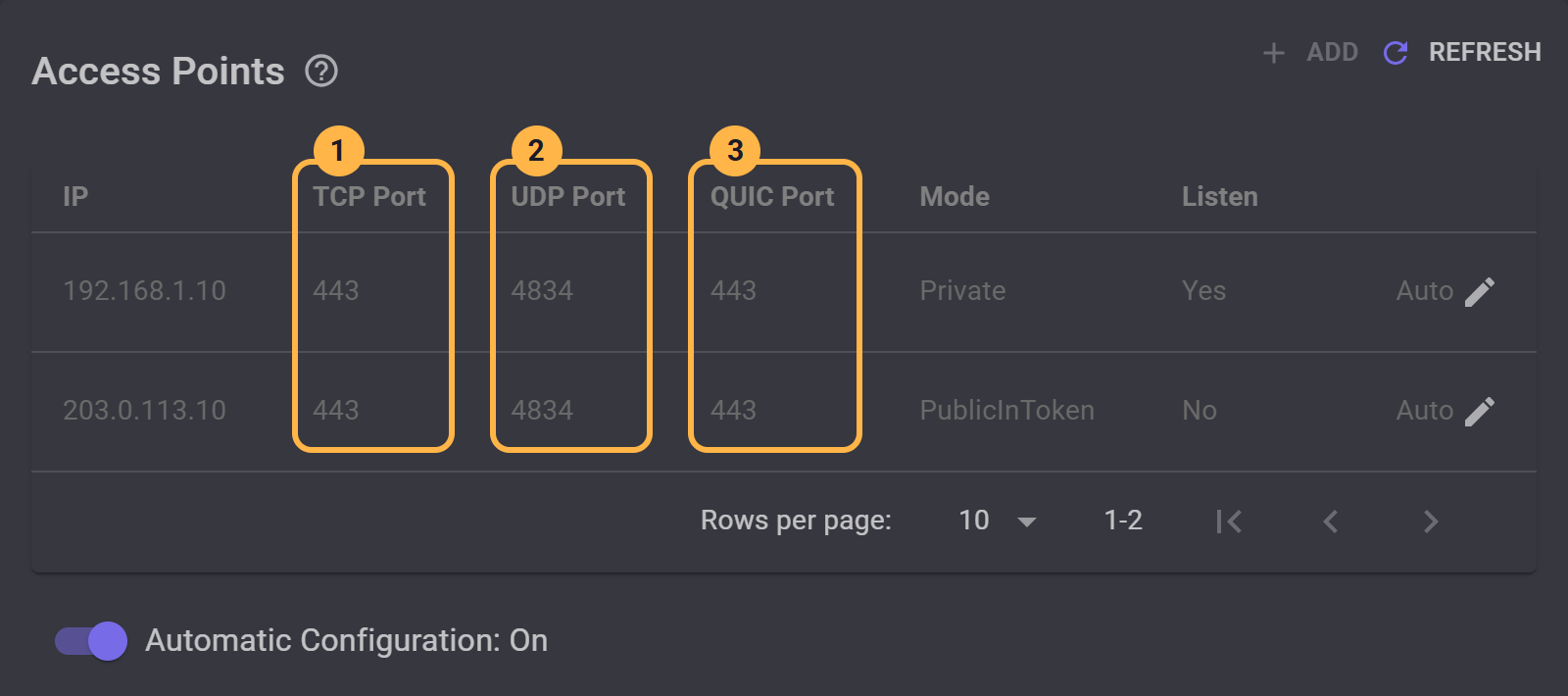
192.168.1.10, is where the router forwards the ports. The public address, 203.0.113.10, goes in the keys, and MANAGER changes it by itself.
Let apps find the new address
A key carries the addresses it was made with, so after a change, an app holding it tries the old address. Give your keys a way to the new one before the address changes: a dynamic DNS name, farm token URLs, or both.
A dynamic DNS name
A dynamic DNS (DDNS) service gives you a name that always points at your current address. Keys that carry the name keep working, as apps look it up every time they connect.
- Get a name from a dynamic DNS service, and have your router, or a small program on the machine, keep it up to date. Choose a name that does not say VPN: apps send it in clear at the start of every connection, where the network can read it.
- Forward TCP port
80to the machine too, for as long as you use the name: the certificate is checked through it, and renewed through it every few months. - Give the farm a certificate for the name, as Use your own domain shows: set Signing to AutoSign (1), wait until Signature reads CA Signed (2), then set Visibility to PublicInToken (3).
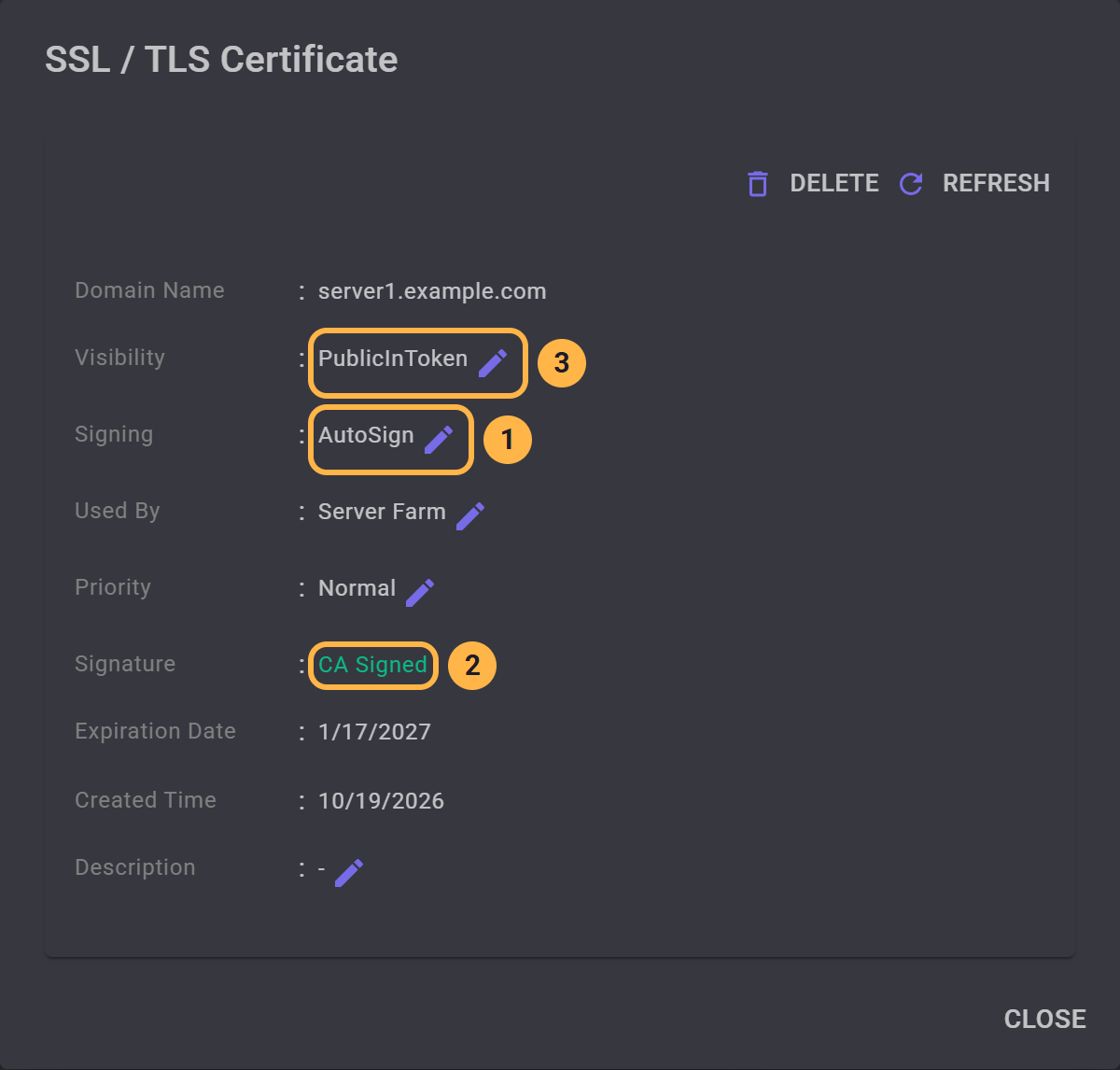
The signature is what makes this work: apps look a name up only when its certificate is CA Signed. With a self-signed certificate, they try only the addresses in the key.
Farm token URLs
A farm token URL is a file on the web where MANAGER publishes the farm's current addresses after every change. An app that cannot connect reads the file and tries again with what it finds. This needs no name and no extra port, only a place on the web your users can reach, such as a GitHub repository. Farm token URLs shows how to add one. Set its Auto Upload to anything but Off, so that MANAGER updates the file by itself.
Keys you have already given out
Keys you copy from MANAGER from now on carry the name or the URLs. An app holding an older key gets the new one the next time it connects, as Push token to clients is on by default, so set this up while the address in its key still works. An app that can no longer reach the server needs a new key from you.
Keep in mind
- Connected apps drop. Apps connected at that moment lose the connection. They can connect again once the name or the file shows the new address, usually within a few minutes.
- A shared address does not work. Some providers put many customers behind one public address, often called CGNAT, and connections from outside never reach your router. If the address your router shows is not the one websites see, ask your provider for a public address.
- Two internet lines do not work with this. Behind a router that sends each connection out over another line, the address seems to change all the time, and the server keeps reconfiguring. On such a server, turn Automatic Configuration off and set the addresses yourself.
On a standalone server
Without MANAGER, nothing updates the keys, and a standalone server looks its address up only when it starts. A dynamic DNS name still works, as apps look the name up themselves: give the server a certificate for it, as Use a domain name and a trusted certificate shows, and give your users new keys.


