
Add a server
Add a server to VpnHood! MANAGER, and MANAGER installs VpnHood! SERVER on it for you, or gives you the one command that does. The server then connects to MANAGER, which issues its access keys.

Before you start
- A machine with a public IP address, running Linux on x64 or arm64, with root access. The install commands run through sudo, so it has to be on the machine even if you sign in as root.
- TCP port
443open, both in the machine's firewall and in your hosting provider's. - For MANAGER to install the server over SSH, the machine's SSH port open to MANAGER:
22, unless you changed it. - For Docker, Docker with its compose plugin. The installer can install it for you on Ubuntu, Debian and the distributions based on them.
Add the server
Open Servers, select Add, name the server and select Create. MANAGER then shows the ways to install it:
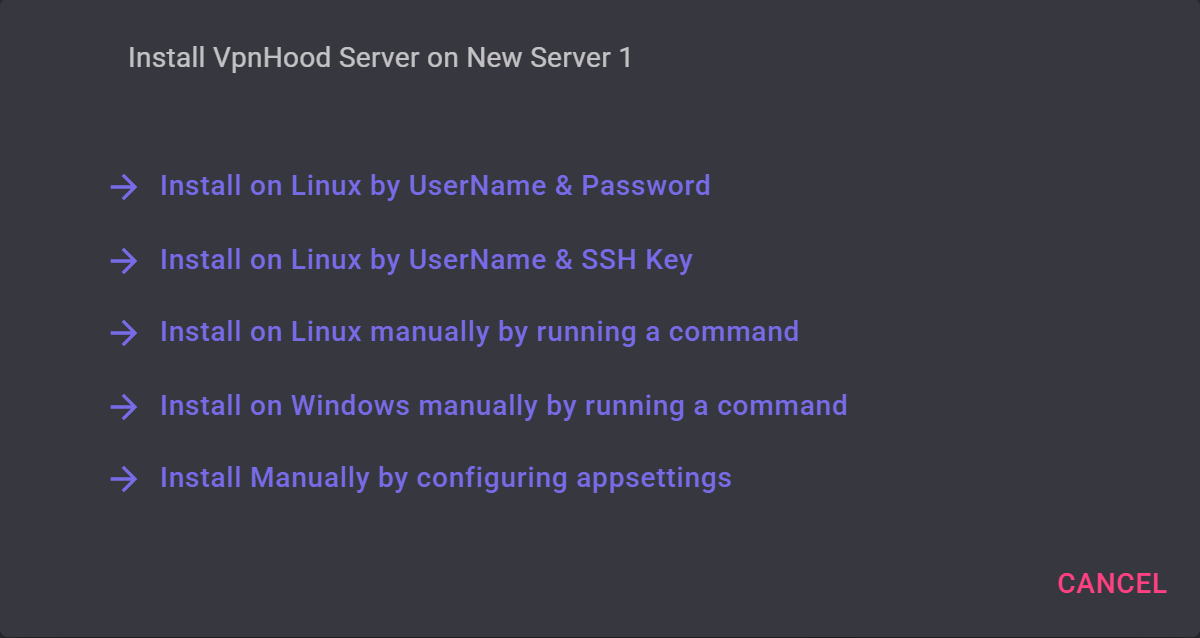
- Install on Linux by UserName & Password or Install on Linux by UserName & SSH Key: give MANAGER the machine's address and an account with root access, and it signs in over SSH and installs the server itself. For a key, upload its file with Upload SSH key.
- Install on Linux manually by running a command: run the command MANAGER shows on the machine. It is the standalone installer, with the settings that connect the server to MANAGER. Keep the command private: it holds the server's credentials.
- Install on Windows manually by running a command: run the command MANAGER shows in PowerShell on a Windows machine. Linux is recommended, though: Windows' NAT translates only IPv4, so only on Linux does the server handle IPv6 properly.
- Install Manually by configuring appsettings: for a server you installed already. Save the settings MANAGER shows as
/opt/VpnHoodServer/storage/appsettings.json, then restart the server withsudo systemctl restart VpnHoodServer.
Install it with Docker
Choose Install on Linux manually by running a command. In the command MANAGER shows, change VpnHoodServer-linux.sh to VpnHoodServer.docker.sh, then run it on the machine. It installs the server's container with the settings that connect it to MANAGER, and asks the question the standalone install with Docker asks.
For a container you created already, choose Install Manually by configuring appsettings instead. Save the settings MANAGER shows as /opt/VpnHoodServer/storage/appsettings.json on the host, then restart the container with sudo docker restart VpnHoodServer.
Check that it connects
The server connects to MANAGER over HTTPS, at access.vpnhood.com. Once it does, its status changes from NotInstalled to Idle, and to Active while devices are connected. To see the install options again, open the server and select Install, or Reinstall once it is installed.
Create access keys
Create the access keys for your devices under Access Tokens. Then install VpnHood! CLIENT on each device, add a key, and connect.
Day to day
A managed server is the same VpnHood! SERVER as a standalone one, so it runs, logs and updates itself the same way: see Start and stop the server, or Start, stop and check the server in Docker.


