
Install VpnHood! SERVER
Run your own VPN server on any Linux machine with a public IP address. VpnHood! MANAGER can install it for you as a managed server, or one command installs it as a standalone server.

-
Your server
VpnHood! SERVER runs on a machine you control, such as a VPS.
-
An access key
MANAGER or the server creates it. Whoever has the key can connect.
-
Your devices
Add the key to VpnHood! CLIENT on a phone or a computer.
Before you start
- A machine with a public IP address, running Linux on x64 or arm64.
- Root access. The install commands run through sudo, so it has to be on the machine even if you sign in as root.
- TCP port
443open, both in the machine's firewall and in your hosting provider's. It is the port the server listens on.
Install a managed server
VpnHood! MANAGER installs the server for you and issues its access keys. In MANAGER, open Servers, select Add, name the server and select Create. MANAGER then shows the ways to install it:
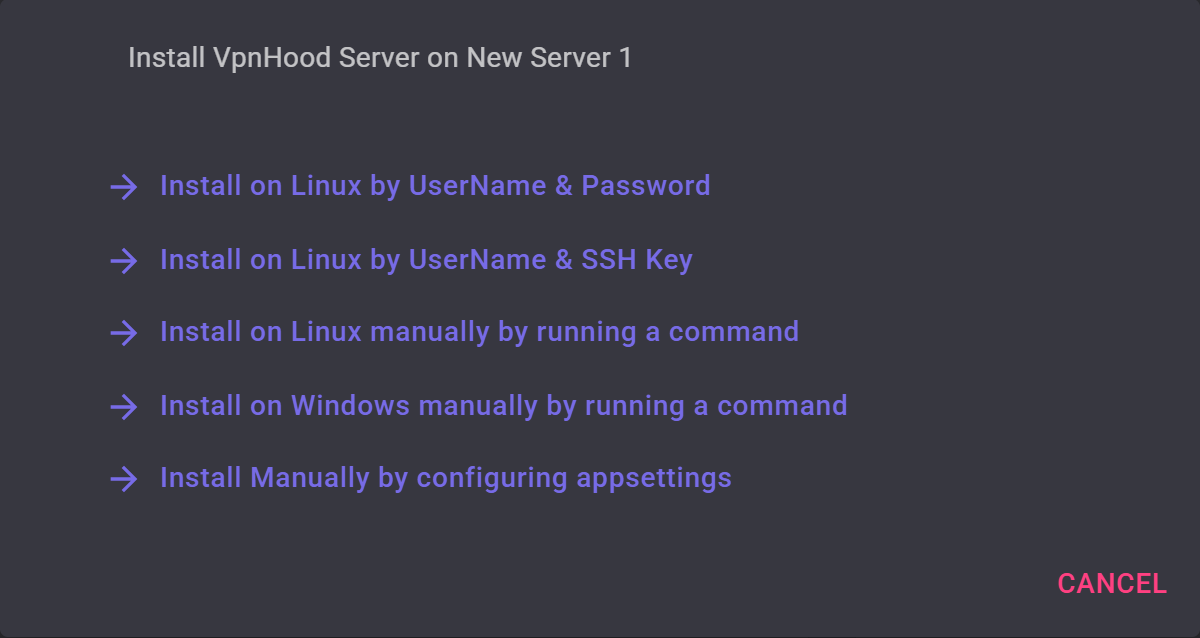
- Install on Linux by UserName & Password or Install on Linux by UserName & SSH Key: give MANAGER the machine's address and an account with root access, and it signs in over SSH and installs the server itself. MANAGER has to reach the machine's SSH port,
22unless you changed it. For a key, upload its file with Upload SSH key. - Install on Linux manually by running a command: run the command MANAGER shows on the machine. It is the standalone installer below, with the settings that connect the server to MANAGER, and it asks the same two questions. Keep the command private: it holds the server's credentials.
- Install Manually by configuring appsettings: for a server you installed already. Save the settings MANAGER shows as
/opt/VpnHoodServer/storage/appsettings.json, then restart the server withsudo systemctl restart VpnHoodServer.
The server connects to MANAGER over HTTPS, at access.vpnhood.com. Once it does, its status changes from NotInstalled to Idle, and to Active while devices are connected. To see the install options again, open the server and select Install, or Reinstall once it is installed.
Then create the access keys for your devices in MANAGER, under Access Tokens.
Install a standalone server
Run this command. It detects whether the machine is x64 or arm64, installs the server into /opt/VpnHoodServer and asks you two questions.
sudo su -c "bash <( wget -qO- https://github.com/vpnhood/VpnHood.App.Server/releases/latest/download/VpnHoodServer-linux.sh)"When it asks Start the server at boot (Y/n)? and Keep the server up to date by itself (Y/n)?, press Enter for both. The server then runs as a service: it starts with the machine, starts again after a crash, and keeps itself up to date.
In a script, install without the questions
sudo su -c "bash <( wget -qO- https://github.com/vpnhood/VpnHood.App.Server/releases/latest/download/VpnHoodServer-linux.sh) -q"Create your first access key
A standalone server lets in only devices that hold an access key it made. Run this on the server to create one.
sudo /opt/VpnHoodServer/vhserver genThe key is printed under --- AccessKey --- and starts with vh://; copy the whole line. A few lines above it, HostEndPoints: should show your server's public IP address.
To limit a key, add any of these options to the command.
| Option | What it does |
|---|---|
-name Phone | A name, to tell your keys apart. |
-maxClient 5 | How many devices can use the key at the same time. Without it: 2. |
-maxTraffic 50000 | A traffic limit, in megabytes. Without it: none. |
-maxSpeed 20 | A speed limit for both upload and download, in megabits per second. Without it: none. |
-expire 2030/01/25 | The day the key stops working. Without it: never. |
For example, a key for one phone that stops working at the end of 2030
sudo /opt/VpnHoodServer/vhserver gen -name Phone -maxClient 1 -expire 2031/01/01Anyone who has the key can connect through your server. Share it the way you would share a password.
Connect
Install VpnHood! CLIENT on each device, add the key, and connect.
Start and stop the server
The server runs as the VpnHoodServer service, whether it is managed or standalone.
sudo systemctl status VpnHoodServer
sudo systemctl stop VpnHoodServer
sudo systemctl start VpnHoodServer
Its log is in /opt/VpnHoodServer/storage/logs/server.log.
If you installed it without the service, start it yourself with sudo /opt/VpnHoodServer/vhserver. It runs until you stop it with sudo /opt/VpnHoodServer/vhserver stop from another terminal.
Updates
Unless you turned it off at install, the server updates itself to each new release: the VpnHoodServerUpdater service checks every 12 hours.
To turn this off, run the standalone install command again and answer n to Keep the server up to date by itself (Y/n)?. The installer keeps your answer and your settings, so the server stays on its version until you run the command yourself. In a script, add -noautoupdate:
sudo su -c "bash <( wget -qO- https://github.com/vpnhood/VpnHood.App.Server/releases/latest/download/VpnHoodServer-linux.sh) -q -noautoupdate"Keep updates on if you can. Some releases fix security issues, and newer apps may stop supporting old servers.


