
Set your server's IP addresses
An access key tells apps which address to connect to. The server usually works that out by itself, but on a machine with more than one IP address you may need to set it: the address the server listens on, and the address it puts in the keys.

How the server finds its address
By default, the server listens on every address of the machine, on TCP port 443.
For the keys, it looks its address up through its own outgoing traffic: it asks a web service which address that traffic comes from. For a managed server, VpnHood! MANAGER does the same through Automatic Configuration, and sets the server's access points to match. It is on for every new server.
That finds the right address on most machines. Set it yourself when:
- The machine sends its traffic from another address than the one users should connect to, such as a separate outgoing IP. The lookup would find the outgoing one.
- The machine has more than one public IP address, and the keys should carry a particular one.
- The lookup fails, for example because the machine cannot reach the web service. A standalone server then does not start, and its log says
PublicEndPoints has not been configured properly.
On a managed server
In VpnHood! MANAGER, open Servers, select the server and find its Access Points. Each access point is one address of the server, with its ports.
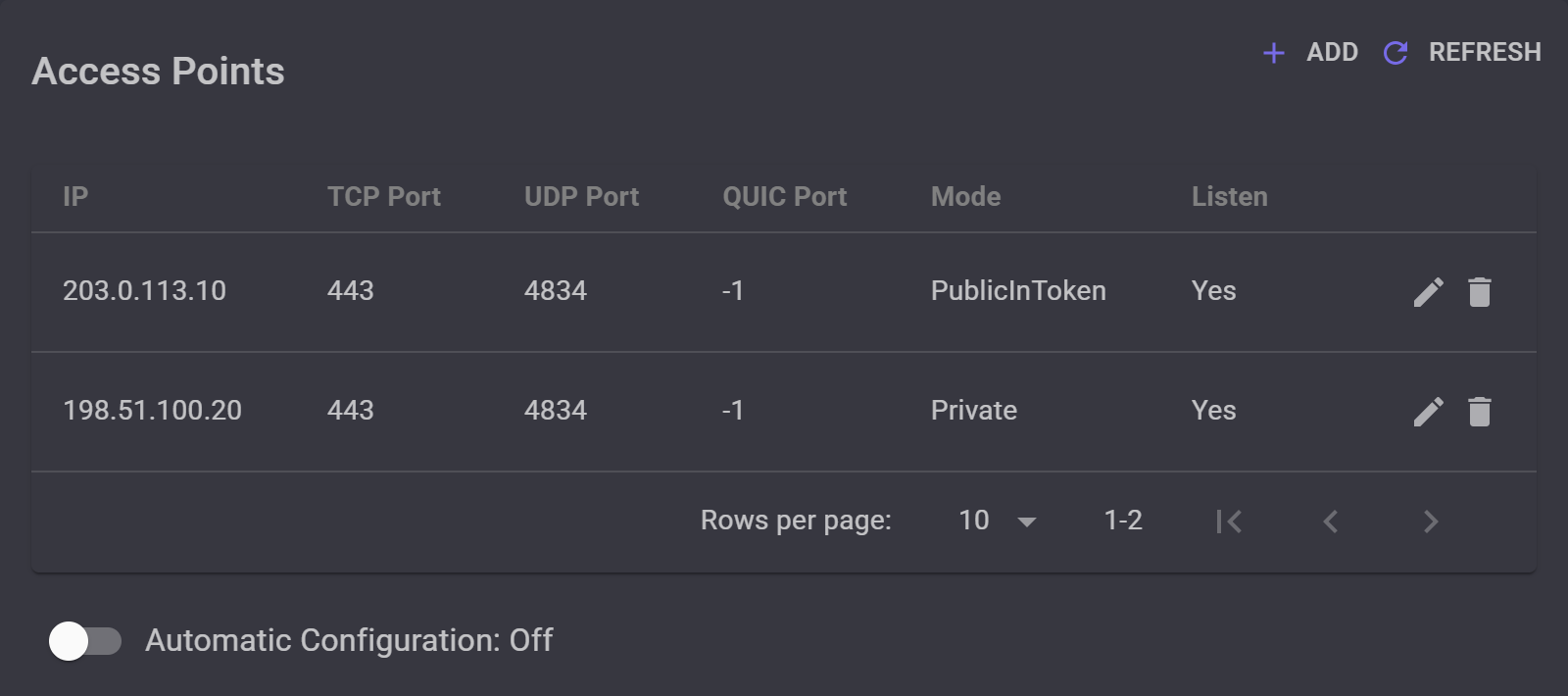
203.0.113.10, goes in the keys. The old one, 198.51.100.20, is kept out of them, but the server still listens on it for apps that hold an older key.
To set them yourself, turn Automatic Configuration off: while it is on, the list cannot be changed. MANAGER asks you to confirm, because the server restarts with its new settings.
Two settings decide what each address is for:
- Mode decides who gets the address. PublicInToken puts it in every access key of the server farm. Public keeps it out of the keys, and MANAGER gives it to an app only when it sends that app to this server. Private never gives it to apps.
- Listen decides whether the server listens on the address. Set it to Yes only for an address your provider routes to the machine: on Linux, the server adds a listening address the machine does not have to its network by itself.
UDP Port and QUIC Port are optional, and -1 turns either off.
On a cloud where the machine has only private addresses, such as AWS, Google Cloud, Azure or Oracle Cloud, add the private address with Mode Private and Listen Yes, and the public IP with PublicInToken and Listen No, on the same port. Automatic Configuration sets up the same by itself.
To check, open the server farm: its page lists the addresses its keys contain, under Access Points.
On a standalone server
The server reads its settings from /opt/VpnHoodServer/storage/appsettings.json. A new install has no such file: create it, and from then on the server uses it in place of the settings it was installed with. Two settings under FileAccessManager decide the addresses:
TcpEndPointslists the addresses and ports the server listens on.PublicEndPointslists the addresses and ports that go into access keys. Use real addresses only:0.0.0.0or[::]here stops the server from starting.
The whole file: the server listens on every address and puts 203.0.113.10 in the keys
{
  "FileAccessManager": {
    "TcpEndPoints": [ "0.0.0.0:443", "[::]:443" ],
    "PublicEndPoints": [ "203.0.113.10:443" ],
    "SslCertificatesPassword": null
  },
  "ServerConfig": {
    "LogAnonymizer": true,
    "AddListenerIpsToNetwork": "*"
  },
  "LogLevel": "Information"
}
To listen on one address only, as with a separate outgoing IP, put that address in TcpEndPoints as well. Outside Docker, the server adds an address it listens on to the machine's network by itself, if the machine does not have it yet.
If you also use UdpEndPoints or QuicEndPoints, give them the same address as TCP.
On a cloud where the machine has only private addresses, such as AWS, Google Cloud, Azure or Oracle Cloud, listen on the private address, or on every address, and put the public IP in PublicEndPoints.
Then restart the server with sudo systemctl restart VpnHoodServer, or with sudo docker restart VpnHoodServer in Docker. To check, create a key with vhserver gen: the line HostEndPoints: shows the addresses it carries.
Keys you have already given out
A key carries the addresses it was made with, so an app holding an older key keeps trying the old address. Each app picks up the current key by itself whenever it connects, so after a change, keep the server listening on the old address for a few days, then remove it.
On a managed server, keep it as an access point with Mode Private and Listen Yes: apps get the new key because Push token to clients is on by default. On a standalone server, keep the old address in TcpEndPoints only.
An app that can no longer reach the old address needs a new key from you. With a domain name and a certificate from a certificate authority, keys find a new address through DNS, so a change does not break them.


