
Access points
A server's access points are its addresses in VpnHood! MANAGER: the ones it listens on, and the ones that go into the access keys. MANAGER sets them by itself, until you need a particular address.

Where to find them
Open Servers, select the server and find its Access Points. Each access point is one address of the server, with its ports. The server farm's page lists the addresses its keys contain, under Access Points too.
Automatic configuration
Automatic Configuration is on for every new server. MANAGER looks the server's address up through the server's own outgoing traffic, as a standalone server does, and sets the access points to match. That finds the right address on most machines; How the server finds its address lists when it does not.
To set the access points yourself, turn Automatic Configuration off: while it is on, the list cannot be changed. MANAGER asks you to confirm, because the server restarts with its new settings.
An access point's settings
Two settings decide what each address is for:
- Mode decides who gets the address. PublicInToken puts it in every access key of the server farm. Public keeps it out of the keys, and MANAGER gives it to an app only when it sends that app to this server. Private never gives it to apps.
- Listen decides whether the server listens on the address. Set it to Yes only for an address your provider routes to the machine: on Linux, the server adds a listening address the machine does not have to its network by itself.
UDP Port and QUIC Port are optional, and -1 turns either off.
Devices set to UDP need the server's UDP Port open too, in the machine's firewall and your hosting provider's.
On a cloud with private addresses
On a cloud where the machine has only private addresses, such as AWS, Google Cloud, Azure or Oracle Cloud, add the private address with Mode Private and Listen Yes, and the public IP with PublicInToken and Listen No, on the same port. Automatic Configuration sets up the same by itself.
Change an address
A key carries the addresses it was made with, so an app holding an older key keeps trying the old address. Keep the old one for a few days as an access point with Mode Private and Listen Yes: apps get the new key when they connect, because Push token to clients is on by default. Then remove it.
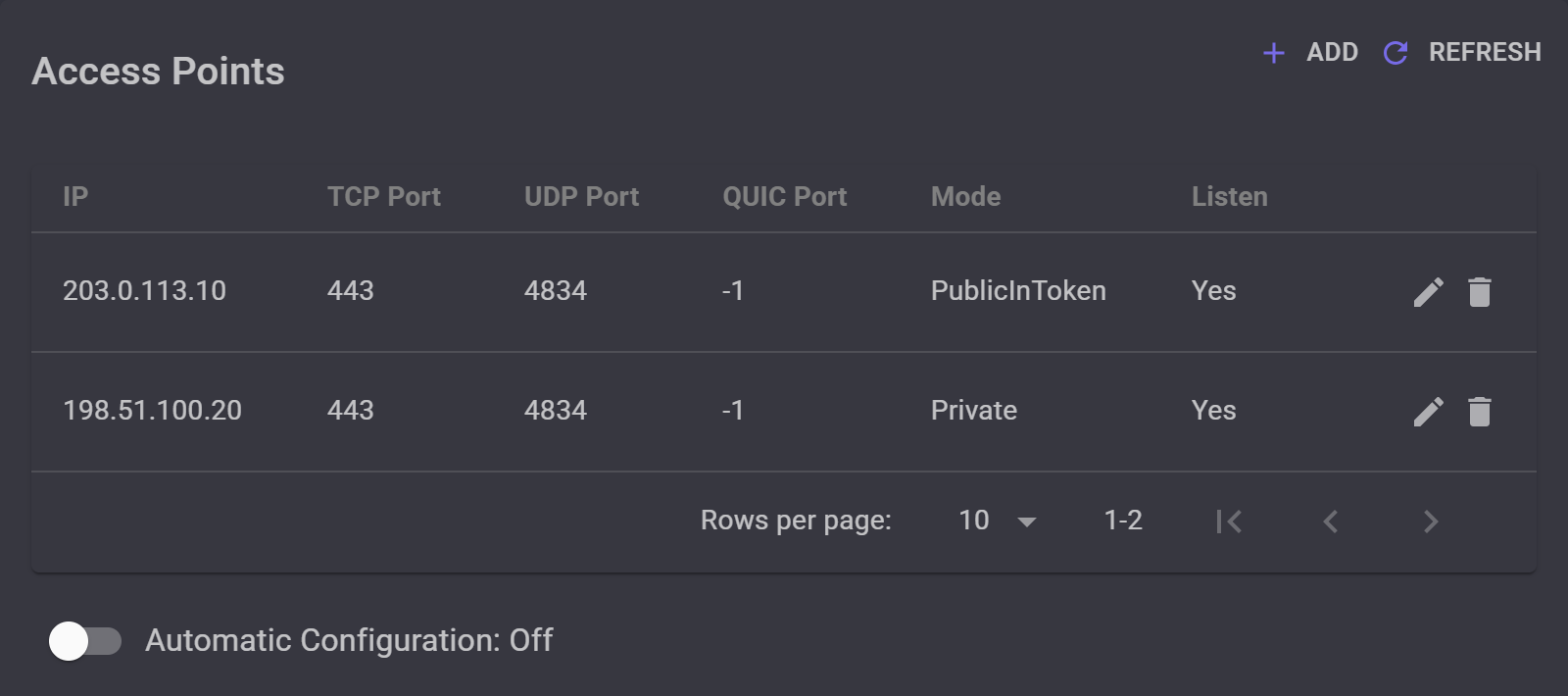
203.0.113.10, goes in the keys. The old one, 198.51.100.20, is kept out of them, but the server still listens on it for apps that hold an older key.
Behind a reverse proxy
First turn the proxy on, as Put your server behind a reverse proxy shows. Then check the farm's certificate for the domain: under Signature it reads CA Signed, and its Visibility is PublicInToken, as Use your own domain sets it up. Keys then carry the domain, and apps look it up.
To send every app through the proxy, take the server's own addresses out of the keys:
- Turn Automatic Configuration off.
- Edit each address, and set its Mode to Private.
- Leave its Listen at Yes, so the server keeps listening: the proxy still connects to it.
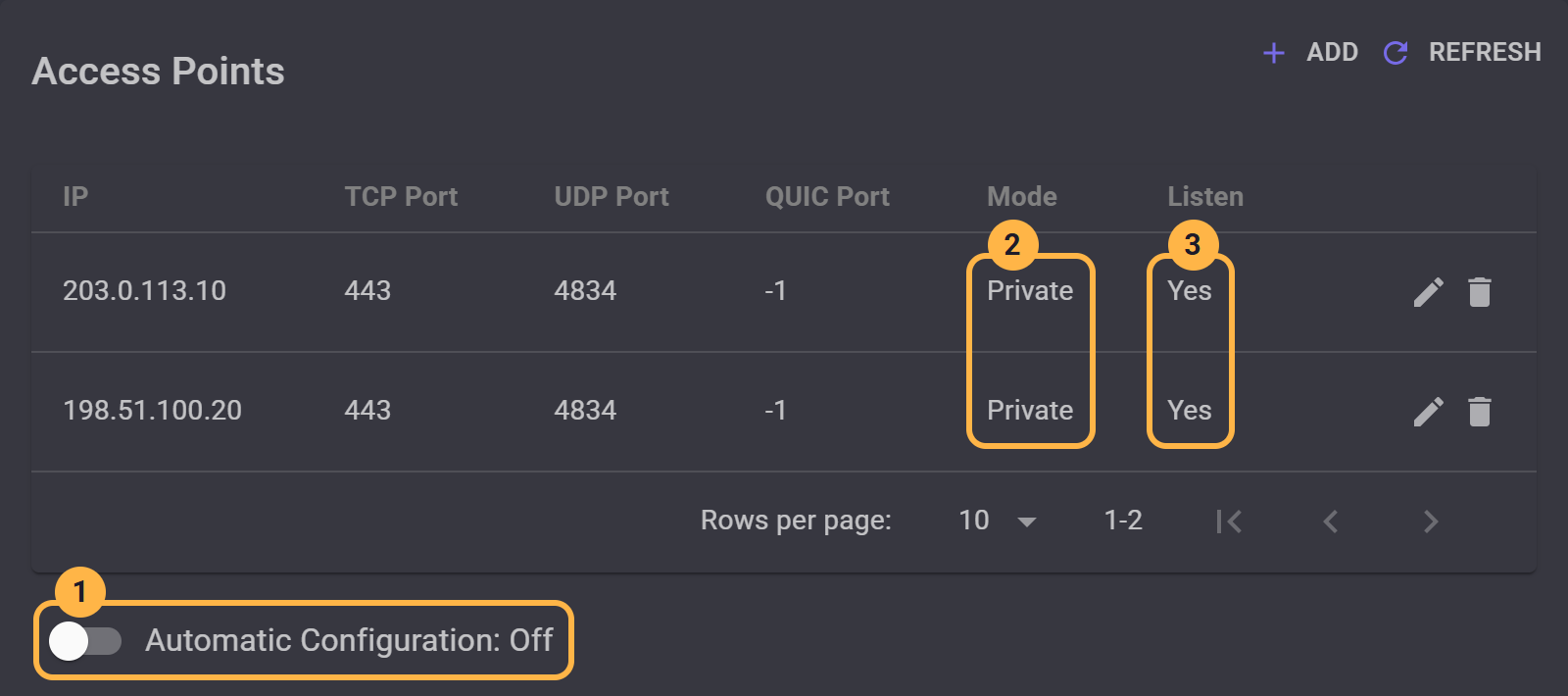
MANAGER allows keys without an address only while the certificate reads CA Signed.
Apps holding an older key keep using it, and the server's addresses with it: Push token to clients sends apps a new key only while one of the farm's servers has a PublicInToken address. Copy the new keys from MANAGER and give them to your users.
Left at PublicInToken, the addresses stay in the keys, and apps use them and the proxy alike. The proxy then keeps your users connected when an address is blocked.
The domain leads to one server, so in a farm of several servers, every app that comes through the proxy reaches the same one.


