
Server profiles
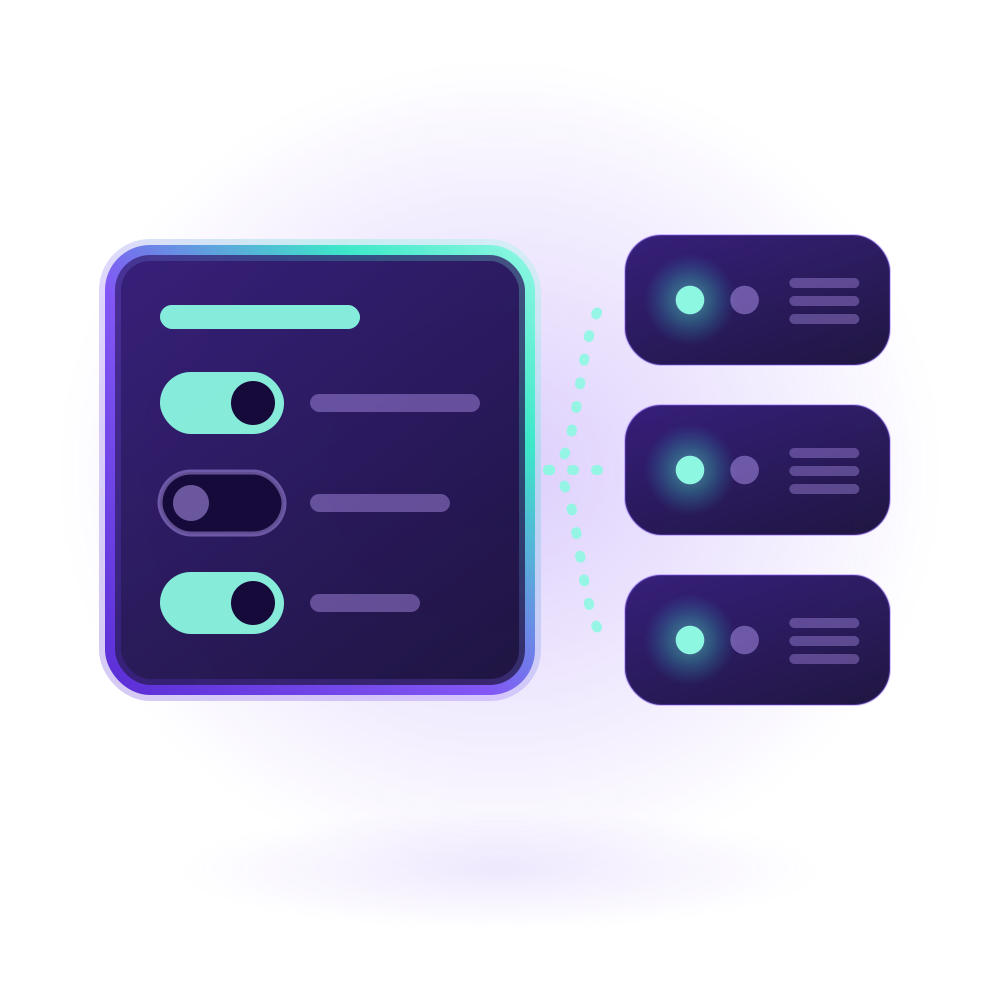
A server profile holds the settings of your servers. Each server farm uses one, and VpnHood! MANAGER sends its settings to every server of the farm, so you change them in one place.
Where to find them
Open Settings and select Server Profiles. Every project starts with a default profile, which a new server farm uses unless you choose another. The default profile can be neither renamed nor deleted, and no profile that a farm uses can be deleted.
A farm's page in Server Farms names its profile under Server Profile: select the name to open the profile, or edit it to give the farm another one.
Change a profile's settings
A profile's page sets the common ones under General, Network Filter and Tracking. For any other, select Advanced edit: it shows the servers' settings as JSON, under the same names as on a standalone server. Change them and select OK.
MANAGER sends the new settings to every server of the farms that use the profile.
MANAGER refuses the few settings it sets for each server itself, and its message names the setting. UdpEndPoints and QuicEndPoints take only [], which turns UDP or QUIC off on the profile's servers: their ports are each server's own, set in its access points.
MANAGER keeps only the settings it knows and drops any other as you save, a misspelled name too, so open Advanced edit again to check yours.
Settings for a censored network
On a network that blocks VPN servers, a farm's profile gives all of its servers the settings for a censored network at once. Keep your server's IP address from being blocked explains each, and what it costs your users. In Advanced edit, set:
Cloak Mode for everyone, no UDP and no QUIC to the servers, and your users' QUIC dropped
{
  "Session": {
    "AllowTcpPacket": false,
    "AllowQuicPacket": false
  },
  "UdpEndPoints": [],
  "QuicEndPoints": []
}
MANAGER refuses AllowQuicPacket or AllowUdpPacket off while AllowTcpPacket is on, as the servers would carry them anyway. It refuses AllowTcpPacket and AllowTcpProxy both off too, which leaves TCP no way through.
Behind a reverse proxy
Your servers trust Cloudflare to name each user's address. Behind another reverse proxy, open Advanced edit and add the settings that Your users' addresses shows.


