
Guide
Why can websites see my IP address through WebRTC?
A WebRTC test can show one of your device's own addresses even while you are connected to a VPN, often right after you let a site use your microphone or camera. It looks alarming, but in almost every case nothing has escaped the VPN, and it happens with every VPN. Here is what is going on, which address matters, and how to stop it.
What is WebRTC?
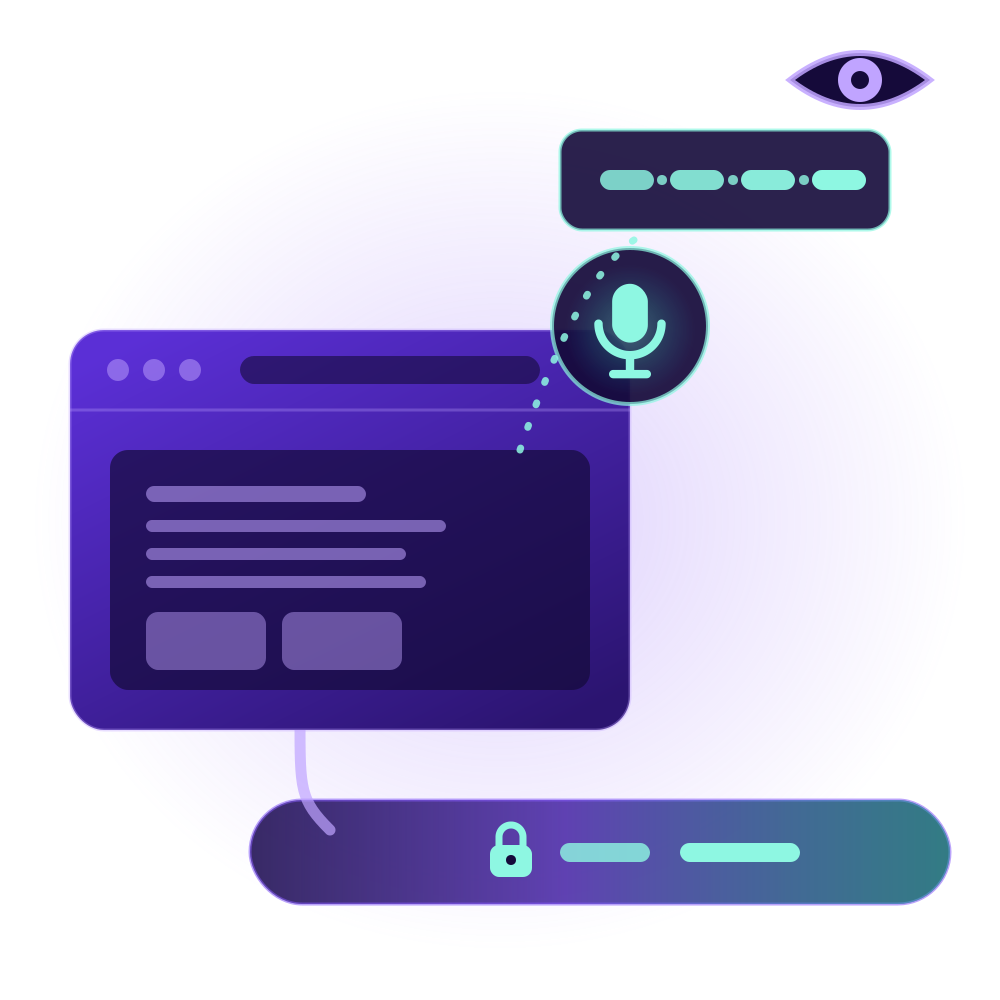
WebRTC is built into every modern browser, on computers and phones alike. It lets websites make voice, video and data connections, such as a call in Google Meet. To connect two devices directly, it gathers your device's network addresses and shares them with the website.
Two ways WebRTC finds an address
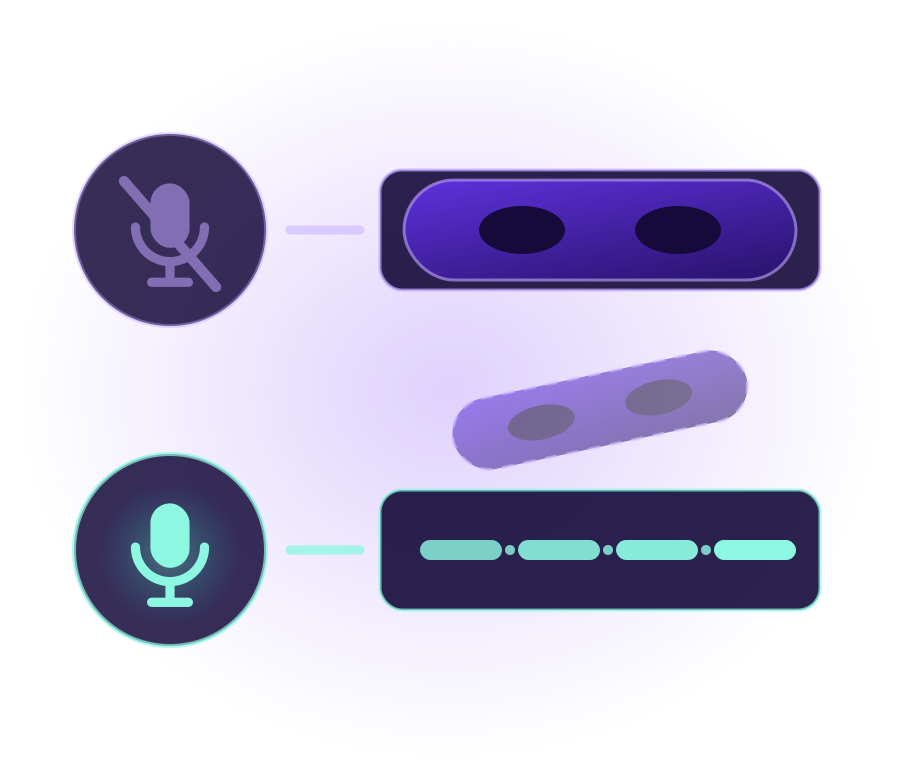
They work very differently, so it matters which one you are looking at.
-
Your device's own addresses
The browser reads them from your device and hands them to the website. Nothing travels over the network, so there is nothing for a VPN to carry or hide. The browser normally masks them with made-up names, but once you let a site use your microphone or camera, it lifts the mask on purpose, so that calls connect, and gives the site your real addresses.
-
Your public address
WebRTC also sends a small request to a server on the internet and asks which address it came from. That is real traffic, so it goes through the VPN, and the answer is the VPN server's address, as it should be.
Which address is the site showing you?
Look closely at the address the test shows.
-
A private address
Such as
192.168.1.10,10.0.0.5or172.16.0.5: your home or office network's own address. Millions of networks use the same ones, so it does not identify you. -
The VPN's own address
The address of VpnHood!'s adapter on your device. It is part of the tunnel itself.
-
A public IPv6 address
Written with colons, such as
2001:db8::25: your real public IPv6 address. This is the one that matters; see why below. -
Your real public IPv4 address
Shown while you are connected, this is a real leak. See Still seeing your real IPv4 address? below.
Why IPv6 is the one that matters
With IPv4, your router stands between your device and the internet, so your device holds only a private address. IPv6 works differently: your device usually holds its own public address. VpnHood! keeps IPv6 traffic from leaving outside the VPN: Split IPv6 set to Protect, its default, makes sure of it. But no VPN can remove the address from your device, and the browser reads the address, not the traffic. That is how a site can show your real IPv6 address although nothing left the VPN.
How to stop it
The address is handed over inside the browser, so the fix is in the browser too.
-
Allow the microphone and camera only where you call
Without that permission, the browser keeps your addresses masked, on computers and phones alike. Allow it only for the sites you call from. To review what you have allowed in Chrome, open Settings → Privacy and security → Site settings, then Microphone and Camera.
-
Chrome and Edge: an extension
Neither has a setting of its own. An extension that limits WebRTC, such as WebRTC Leak Prevent, keeps the browser from handing out your device's own addresses. It can affect calls in the browser, so check that the sites you call from still work.
-
Firefox on a computer: a hidden setting
Type
about:configin the address bar, then setmedia.peerconnection.ice.default_address_onlytotrue. Calls keep working, and sites see only the address of your main connection, which is the VPN while you are connected. To turn WebRTC off entirely, setmedia.peerconnection.enabledtofalseinstead, though calls in the browser then stop working. -
Brave: a built-in setting
Open Settings → Privacy and security and set WebRTC IP handling policy to Default public interface only. On Android, it is under Settings → Brave Shields & privacy.
-
Last resort: turn off IPv6
If only the IPv6 address worries you and you cannot change the browser, turn off IPv6 in your network connection's settings. That removes the address, but it also turns off IPv6 for everything on the device.
Still seeing your real IPv4 address?
If the test shows your real public IPv4 address while VpnHood! is connected, traffic really did leave the tunnel. Check two settings in the app:
-
Split tunneling: a rule for an app, a country or an address may send the browser, or the test, outside the VPN. Turning off Allow Split Tunneling keeps everything inside.
-
Split IPv6 is set to Protect, its default, not Bypass VPN.
If it still happens, send us a diagnosis report so we can look into it.


