
Send a diagnosis report
When the app will not connect or keeps dropping, a diagnosis report shows our support team what went wrong. The steps are the same in VpnHood! CLIENT and VpnHood! CONNECT.

How to send one
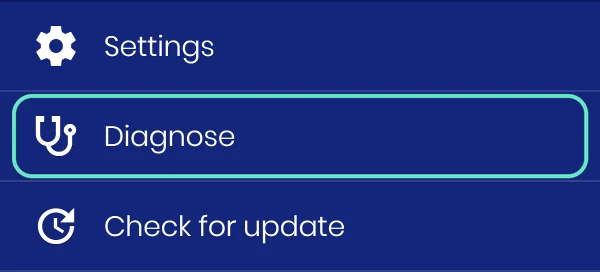
- Open the menu at the top of the home screen and tap Diagnose. The app connects and records what happens.
- Use your device as you did when the problem happened, until you see it again.
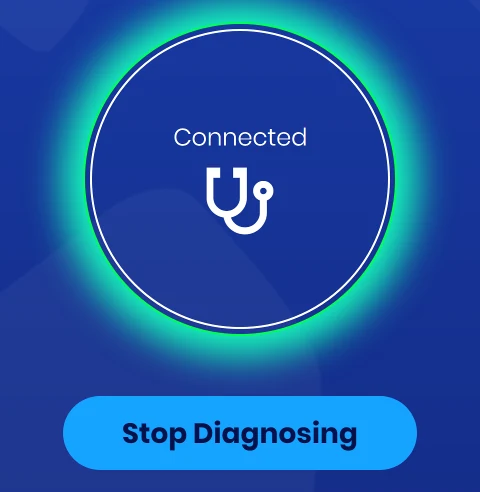
- Tap Stop Diagnosing.
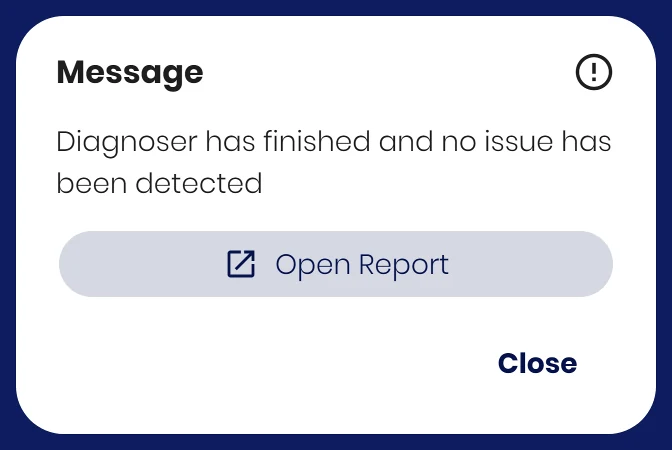
- A message appears when the app has stopped. Tap Open Report in it.
- Share the report with the button at the top of its page and send it to [email protected], with a few words about the problem. On a computer, that button copies it, and in a browser through Remote Access it downloads it. If you have no such button, send a screenshot: the report opens at its end, the part that matters most.
If an error message shows a Diagnose button, you can tap that instead of opening the menu.
What the report holds
The report is plain text that stays on your device until you send it, so you can read it first. It holds:
- The app's version, your system and your country.
- Your app settings as you set them, such as a custom DNS server or split tunneling rules.
- Each step of the connection and any errors. IP addresses and host names are masked here.
It does not hold the sites you visit or the content of your traffic.


