
Use it on your TV
VpnHood! CLIENT runs on Apple TV and Android TV. The TV shows what a remote can do, and you add your access key and change the settings from a phone or computer on the same network.
What you need
- An Apple TV with tvOS 17.0 or later, or an Android TV with Android 7.0 or later.
- An access key. If you have none yet, see how to get an access key.
- A phone or computer on the same network as the TV. It needs only a browser, and nothing is installed on it.
Install the app
- Apple TV: open the App Store on the TV and search for VpnHood! CLIENT.
- Android TV: open Google Play on the TV and search for VpnHood! CLIENT. A TV without Google Play can install the universal version from the download page.
Add your access key
An access key is too long to type with a remote, so the TV hands the job to your phone. This is Remote Access: your phone's browser becomes a remote control for the app on the TV.
- On the TV, open Server and choose Add server. The TV shows the Remote Access screen, with a code and an address.
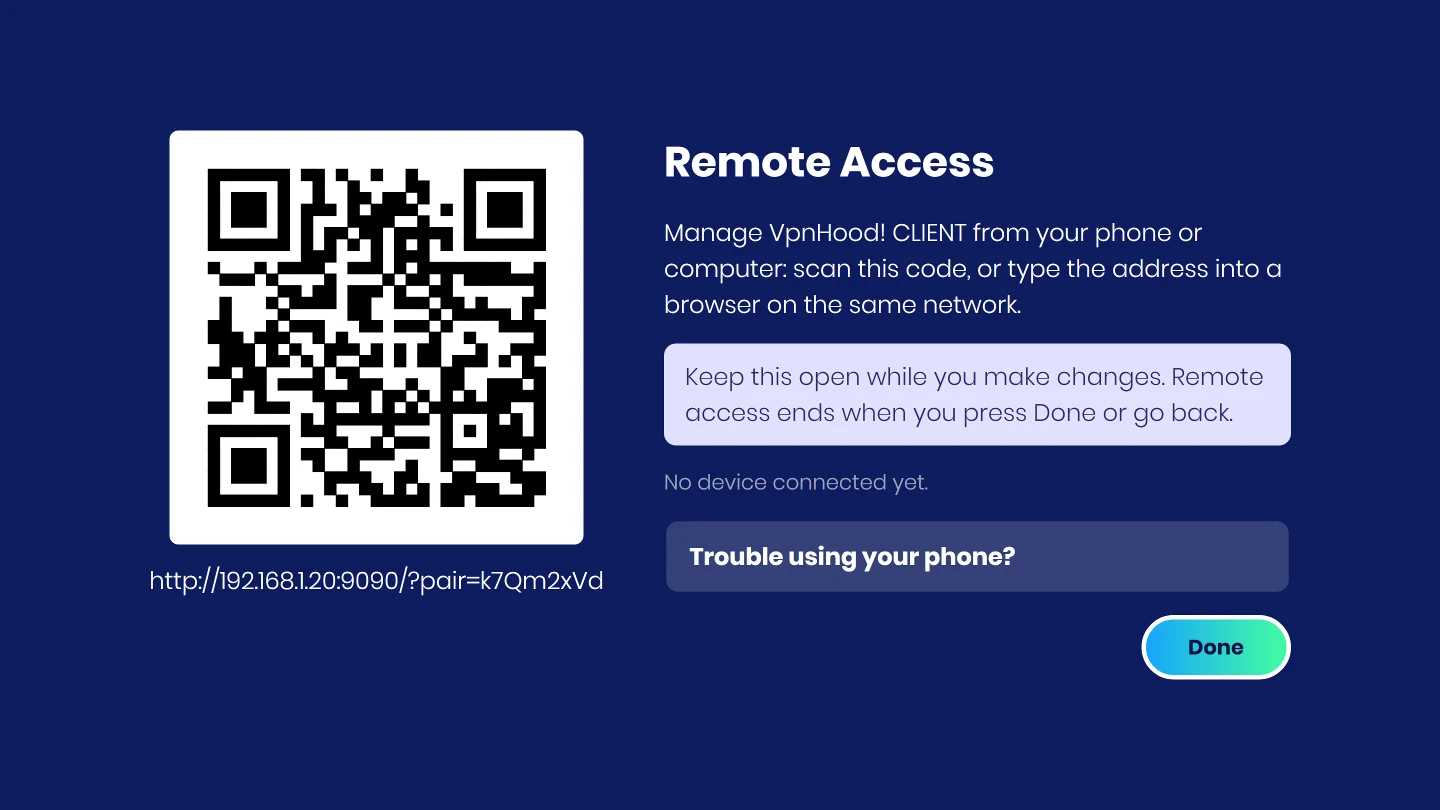
- Scan the code with your phone's camera. On a computer, type the address under the code into a browser.
- The app's pages open in the browser. Open Servers, choose Add server and paste your access key.
- On the TV, press Done.
Keep the Remote Access screen open on the TV while you use the phone. Remote Access ends when you press Done or go back.
Connect
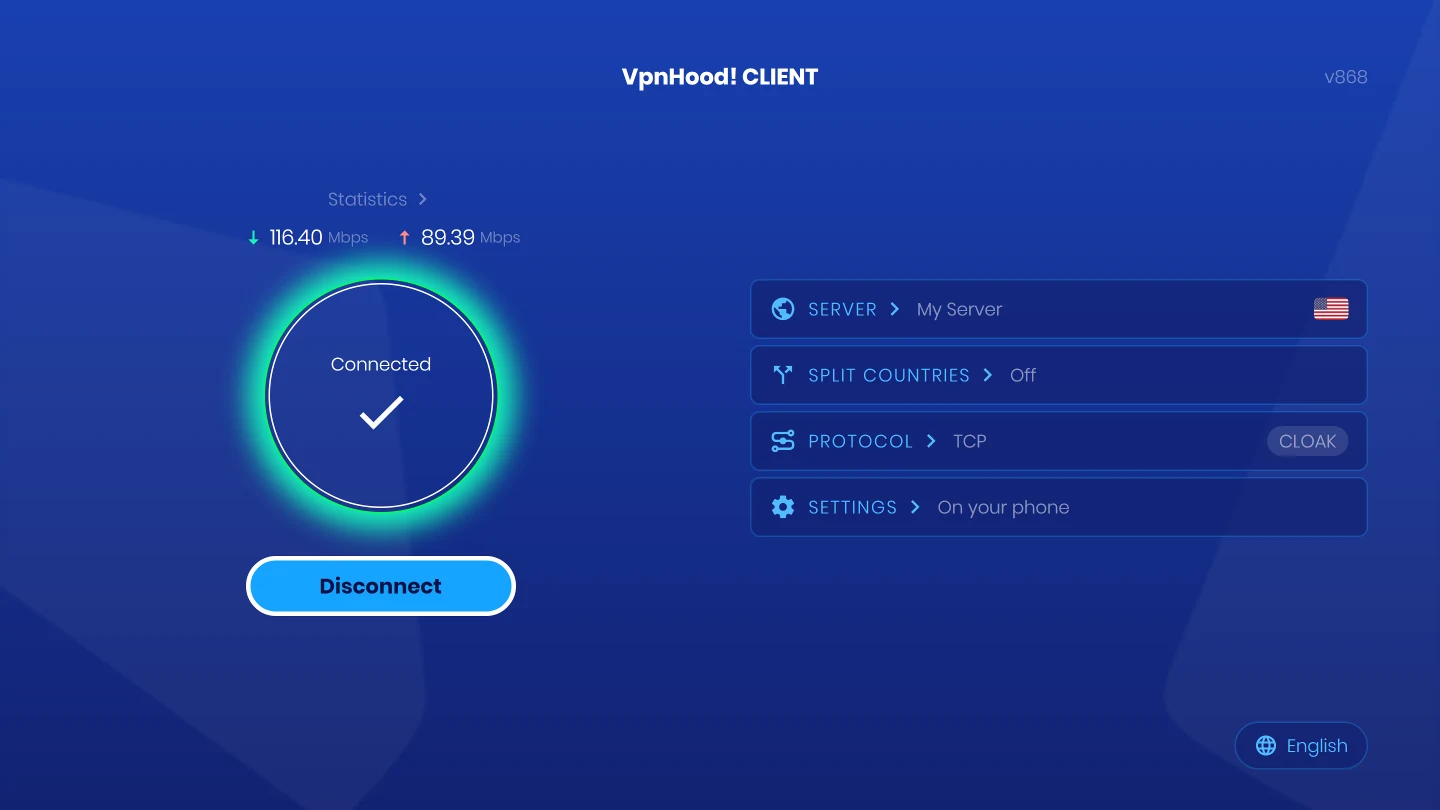
Press Connect with the remote. The TV's home screen also lets you choose the server and its location, the countries to leave out of the VPN, and the protocol.
Change the other settings
Everything else is under Settings, which the TV marks On your phone. Open it to show the Remote Access screen again, scan the code, and open Settings in the browser. Every change is made in the app on the TV at once.
Who can reach the TV
Remote Access works only inside your own network, only while its screen is open on the TV, and only for a device that scanned the code or typed the full address. The connection between the phone and the TV is not encrypted, so use it on a network you trust.
Troubleshooting
 If your phone can't open the page
Try these in order, and scan the code again after each one. The TV shows the same list under Trouble using your phone?
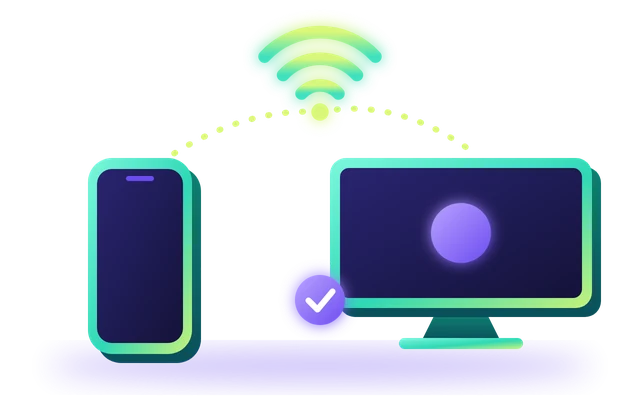
Use the same network
Put your phone on the same Wi-Fi or router as the TV. Mobile data and guest networks can't reach it.
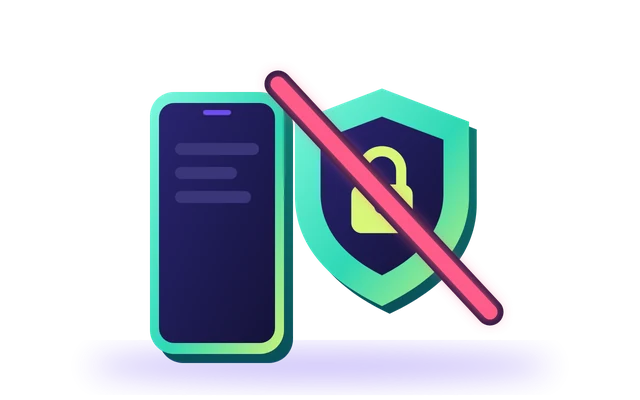
Turn off the VPN on your phone
A VPN on your phone can keep it from reaching the TV. Turn it off while you use the page.
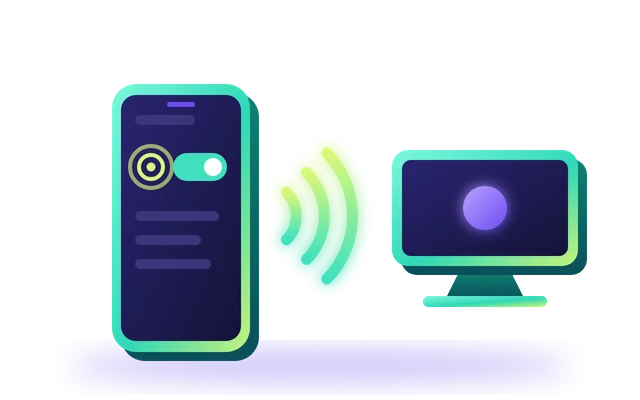
On an Android phone, allow Nearby devices
In your phone's Settings, open Apps, choose your browser, open Permissions and allow Nearby devices.
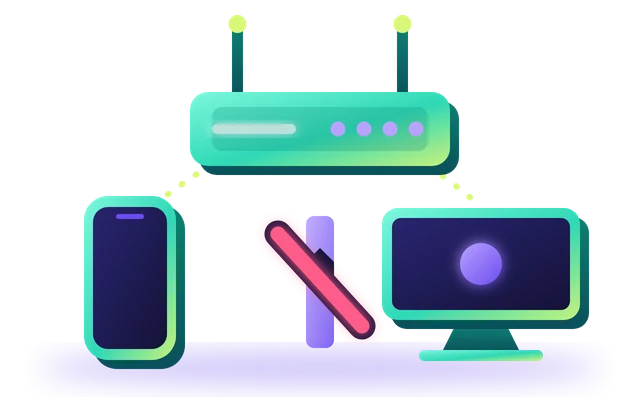
Check your router
Some routers keep devices apart. In your router's settings, turn off AP isolation, also called client isolation.
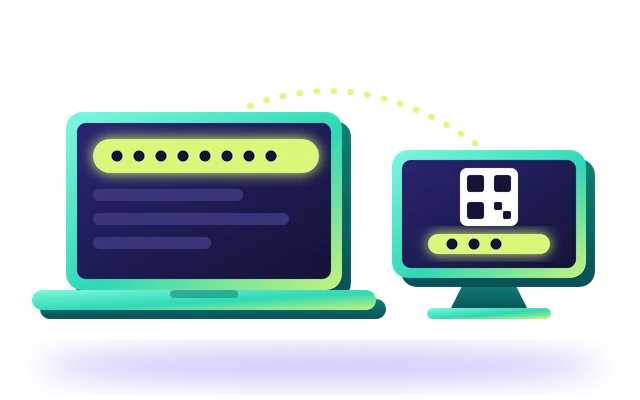
If the page is slow, use a computer instead
On a computer on the same network, type the full address shown under the code into a browser.
 If the page stops answering
The TV has left the Remote Access screen. Open Settings on the TV to show it again, and keep your phone on the TV's network. The page carries on by itself once it reaches the TV; if it does not, scan the code again.


